Improved visibility and functionality in the patient search bar on the census
You can now sign draft progress notes directly from the census when you Sign and Bill
An alert will prompt the user to decide if you want to sign the progress note or leave it in a draft status
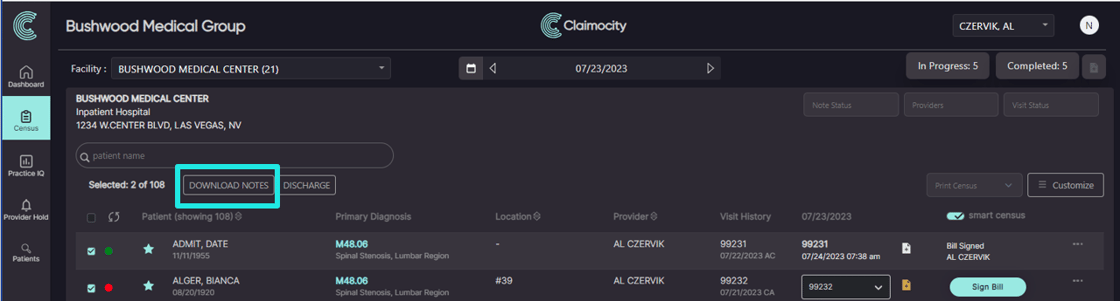
You now have the ability to download notes in bulk actions (see below for additional details)
Voiding an encounter will now alert you that the draft progress note will be deleted
Ability to add headers for snippets to quickly identify which snippet you'd like to use
Ability to sort snippets by creation date, alphabetically, or a custom sort
Improved provider search functionality
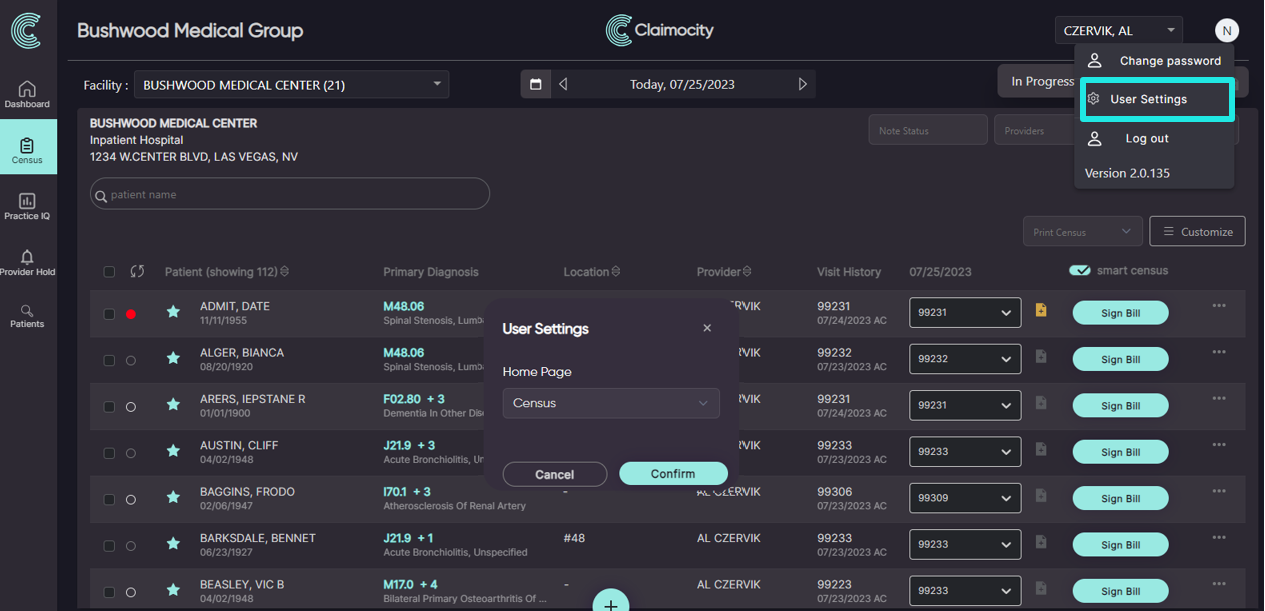
Added User Settings to allow you to select which page you want as the Home Page of the app when you log in (see below for additional details)
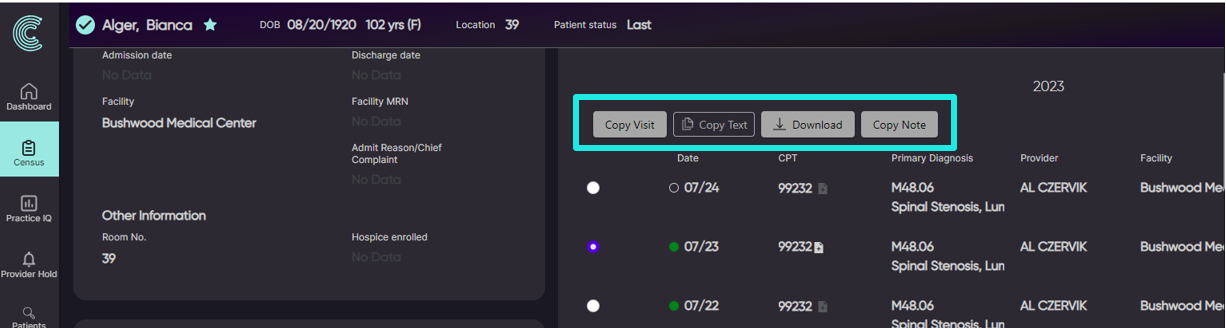
Added functionality to the Patient Details page that allows you to create, copy or continue encounters and progress notes (see below for additional details)
We resolved it:
Plan section not saving in the Pre-Formatted Template (2023-July) is now resolved
Reusing a progress note will now display all progress notes created on the desktop platform
Admit Reason/ Chief Complaint field intermittently not saving is now resolved
Progress note sections will now only display when they are selected
Error when signing a progress note after the encounter has been completed is now resolved
Additional Details:
Bulk Downloading Notes
The Download Notes button has been nested under Bulk Actions giving you more flexibility into which progress note you want to download
You can filter by Note Status on the census to isolate to completed progress notes
You can use the Select All button to select all patient notes to download
User Settings for Home Page
Click your initials/avatar on the top right side of the page and select User Settings
A new window will display allowing you to chose which page of the app you want as your Home Page
Patient Details Added Functionality
You now have the below action buttons in the Patient Details page
Copy Visit
Copy Note
Download Progress Note
Copy Text
Note that the action buttons vary based on the visit status and progress note status
![Claimocity Logo_HubSpot Help Center.png]](https://portal.claimocity.com/hs-fs/hubfs/Claimocity%20Logo_HubSpot%20Help%20Center.png?height=40&name=Claimocity%20Logo_HubSpot%20Help%20Center.png)